
CRUA 34 Inch 165Hz UWQHD IPS Ultrawide Gaming Monitor
4.2Editor score
165Hz refresh rate
IPS panel technology
PIP and PBP modes
Finding a cheap ultrawide monitor does not mean sacrificing quality or performance. Modern displays offer stunning visuals, high refresh rates, and wide color gamuts at accessible price points. Whether you need a setup for gaming, work, or creative projects, there is a budget option to fit your needs perfectly.
We compared ten real products based on screen size, resolution, refresh rate, and panel technology. Our analysis focuses on value, build quality, and features like USB-C connectivity and ergonomic stands. Each entry includes verified specifications and user ratings to ensure you get reliable information for your purchase decision.
Every pick highlights specific strengths such as color accuracy, response time, or multitasking capabilities. You will see detailed reviews, pros, cons, and buying advice for each model. Please note that prices and availability change frequently, so check current listings before finalizing your order today.
4.2Editor score

4.4Editor score

4.6Editor score
As an Amazon Associate we earn from qualifying purchases.
This side-by-side comparison highlights the key specifications of all ten monitors reviewed. You will see differences in resolution, refresh rate, panel type, and connectivity options to help you decide quickly.


The SANSUI 34-Inch Curved Gaming Monitor delivers exceptional performance for competitive gaming at an entry-level price. With a 200Hz refresh rate and 1ms response time, it ensures fluid motion and minimal lag. Its AI built-in features add modern touches that enhance user experience significantly.
We may earn a commission when you buy through this link, at no additional cost to you.
Performance is the highlight here. The VA panel provides deep blacks and high contrast, making dark scenes look rich. Support for VRR via HDMI 2.1 means you can enjoy variable refresh rates without tearing. The ergonomic stand allows tilt adjustments for comfort during long sessions.
However, the lack of built-in speakers means you will need external audio for immersive sound. The AI features like Crosshair or Sniper Scope are helpful but depend on game compatibility. These trade-offs are acceptable given the overall value proposition for gamers on a budget.
This monitor is ideal for budget gamers who prioritize speed and screen real estate over premium audio. If you need a reliable ultrawide display that handles high-speed action well, the SANSUI model stands out as a top recommendation for your setup.
The 200Hz refresh rate ensures smooth visuals in fast-paced games, giving you a competitive edge over standard 60Hz or 75Hz displays.
With two HDMI 2.1 ports and DP 1.4, you can connect next-gen consoles and PCs simultaneously without bandwidth issues.
We may earn a commission when you buy through this link, at no additional cost to you.
The CRUA 34 Inch 165Hz UWQHD IPS Ultrawide Gaming Monitor offers impressive value with an IPS panel and high refresh rate. It brings vibrant colors and wide viewing angles to your desk while keeping costs low. The inclusion of PIP/PBP modes adds versatility for multitasking tasks.
We may earn a commission when you buy through this link, at no additional cost to you.
Its IPS technology ensures accurate colors, which is rare at this price point. The 165Hz refresh rate keeps motion smooth for gaming and video. FreeSync support helps reduce screen tearing effectively. Connectivity includes HDMI 2.0 and DP 1.4 for diverse device support.
The stand does not offer height adjustment, which might cause neck strain over time. Speakers are present but lack depth for serious listening. Despite these minor issues, the monitor delivers strong visual performance for both work and play.
Choose this monitor if you need an affordable ultrawide screen with good color accuracy and multitasking features. It is perfect for students or home offices where budget constraints are key but visual quality matters.
The IPS panel provides a 120% sRGB color gamut, ensuring vivid and true-to-life colors for creative work and media.
PIP and PBP modes allow you to view two inputs at once, boosting productivity without extra hardware costs.
We may earn a commission when you buy through this link, at no additional cost to you.
The LG 34WR55QK-B stands out as a premium choice with versatile connectivity and ergonomic design. Its USB-C port delivers 65W power, simplifying setups for laptops. HDR10 support and accurate colors make it great for media consumption and professional work.
We may earn a commission when you buy through this link, at no additional cost to you.
The stand allows height and tilt adjustments, reducing neck strain during long work hours. OnScreen Control lets you split windows easily for multitasking. The virtually borderless design looks sleek on any desk. This model balances features and build quality effectively.
It is more expensive than other budget options, which may be a barrier for some users. The 5ms response time is decent but not ideal for competitive gaming. These factors are acceptable for users prioritizing productivity and design over pure speed.
This monitor is perfect for professionals who need a clean setup with powerful connectivity. If you value USB-C charging and adjustable ergonomics, the LG 34WR55QK-B is a reliable investment for your workspace.
The USB-C connection supports video, data, and power delivery, reducing cable clutter and simplifying your desk environment.
Height and tilt adjustments help you find the perfect viewing angle, which is crucial for reducing fatigue during long work sessions.
We may earn a commission when you buy through this link, at no additional cost to you.
The MSI PRO MP341CQ E12 is designed for productivity with eye-care features that reduce strain. Its 120Hz refresh rate ensures smooth motion while the 1ms response time keeps gaming sharp. TUV Rheinland certification for Flicker Free and Low Blue Light adds health benefits.
We may earn a commission when you buy through this link, at no additional cost to you.
Built-in Eye-Q Check helps optimize settings for long viewing sessions. Adaptive Sync prevents tearing across different tasks. VESA mountability allows flexible desk arrangements. The VA panel provides good contrast for text and images.
The stand lacks height adjustment, which may limit ergonomic positioning for some users. There is no USB-C connectivity, so laptop users may need adapters. These limitations are minor given the focus on eye health and performance features.
Pick this monitor if you prioritize eye comfort and stable performance. It is well-suited for students or professionals who spend hours reading or working on wide screens daily.
Flicker Free and Low Blue Light technologies protect your eyes during extended sessions, making it ideal for study or office work.
With a 1ms response time, you avoid motion blur in fast-paced games, ensuring clear visuals even during quick movements.
We may earn a commission when you buy through this link, at no additional cost to you.
The LG 34U650A-B features a curved IPS panel that offers wide viewing angles and vibrant colors. Its USB-C connection supports up to 96W power delivery, charging powerful laptops effortlessly. HDR10 support enhances media quality for a rich visual experience.
We may earn a commission when you buy through this link, at no additional cost to you.
The curved design immerses you in content, making it great for movies and games. Height adjustable stands provide comfort for long sessions. The Switch app allows easy screen layout customization for productivity needs. Built-in speakers with DepthSound add audio convenience.
Response time is 5ms, which is fine for general use but not competitive gaming. The price is higher than other budget models. These factors are reasonable for those prioritizing USB-C power and color quality over speed.
This monitor is best for creatives who need accurate colors and powerful charging. If you use a laptop as your primary workstation, this model simplifies your desk with a single cable.
The USB-C port delivers up to 96W power, which can charge most laptops and eliminate extra power bricks from your desk.
The 3800R curve matches your natural line of sight, improving comfort and focus during extended use without strain.
We may earn a commission when you buy through this link, at no additional cost to you.
Samsung's ViewFinity S50GC emphasizes eye care with smart sensors that adjust brightness to your room. HDR10 support ensures rich visuals across content types. The ambient light sensor helps maintain comfort without manual tweaking. It offers a clean look with minimal bezels.
We may earn a commission when you buy through this link, at no additional cost to you.
AMD FreeSync keeps motion smooth for light gaming and media. PIP and PBP features allow multitasking across two sources efficiently. HDMI 2.2 and DisplayPort inputs provide solid connectivity options. The borderless design looks modern in any setting.
Stand adjustments are limited to tilt, which may not suit everyone. The 5ms response time is average for general tasks. These limitations are small compared to the benefits of eye care and smart brightness features.
Choose this monitor for office work where eye comfort is a priority. The smart adjustments make it easy to use throughout the day without fatigue or strain.
The ambient light sensor detects your surroundings and adjusts brightness automatically, reducing eye strain in changing light conditions.
PIP and PBP modes let you view multiple windows or inputs side by side, streamlining your workflow without needing a second screen.
We may earn a commission when you buy through this link, at no additional cost to you.
This Samsung model shares the strengths of the S50GC series with a focus on multitasking and eye comfort. The borderless design maximizes screen space for better workflow. AMD FreeSync ensures smooth visuals for varied content types. Eye Care features protect your vision during long days.
We may earn a commission when you buy through this link, at no additional cost to you.
HDR10 delivers over one billion colors for rich imagery. The stand is minimal, saving desk space but limiting height adjustability. PIP and PBP modes help you monitor data or media alongside main tasks. It is a solid choice for general productivity.
Response times are standard, not ideal for fast-paced gaming. The stand might need an arm for better positioning. These trade-offs are acceptable if your main needs are viewing comfort and screen real estate.
Pick this for a clean desk setup focused on productivity. If you work with multiple windows and care about eye health, this monitor offers the right balance of features.
The thin bezels and minimal stand free up valuable desk space, making it easier to keep your workspace organized and tidy.
The display maintains consistent colors and brightness across wide angles, ensuring that what you see is accurate from any seat.
We may earn a commission when you buy through this link, at no additional cost to you.
The KTC 34 Inch Ultrawide Curved Gaming Monitor brings high refresh rates and strong contrast for immersive gaming. An HVA panel ensures deep blacks and vibrant colors. Its stand supports full ergonomic adjustments including pivot. The warranty adds peace of mind for buyers.
We may earn a commission when you buy through this link, at no additional cost to you.
The 180Hz refresh rate provides smooth motion for competitive play. Adaptive sync tech keeps tearing at bay. DP 1.4 and HDMI 2.0 cover most connectivity needs. The curvature enhances peripheral vision for better immersion.
HDR performance is limited compared to premium models. Warranty support might take time depending on region. These issues are minor compared to the high refresh rate and stand flexibility offered at this price.
Choose this for a reliable gaming setup with solid build quality. If you value smooth motion and adjustable ergonomics without breaking the bank, it is a strong contender.
With 180Hz refresh rate, fast-moving scenes remain clear and stutter-free, giving you a smoother and more responsive gaming experience.
The stand supports tilt, swivel, pivot, and height, allowing you to customize your setup for comfort and different content types.
We may earn a commission when you buy through this link, at no additional cost to you.
The Acer Nitro ED300C X1 offers a smaller screen with high speed at a low price. Its 200Hz refresh rate and 1ms response time excel in competitive gaming. The curved design wraps around your field of view. It is a great entry-level option.
We may earn a commission when you buy through this link, at no additional cost to you.
FreeSync Premium eliminates tearing without needing expensive hardware. The compact size fits small desks easily. Colors are vibrant for the price. It is ideal for those needing speed over resolution clarity.
Resolution is lower than 1440p options. Stand adjustments are minimal. These are expected trade-offs for the low cost and high refresh performance. You gain speed and space efficiency.
Pick this for a budget gaming setup where frame rates matter most. If you have limited desk space but want smooth gameplay, this model fits the bill perfectly.
The 200Hz refresh rate and 1ms response time ensure that fast-paced action is fluid and responsive, ideal for competitive gaming.
At 29.5 inches, this monitor saves desk space while still offering a wide aspect ratio for immersive visuals.
We may earn a commission when you buy through this link, at no additional cost to you.
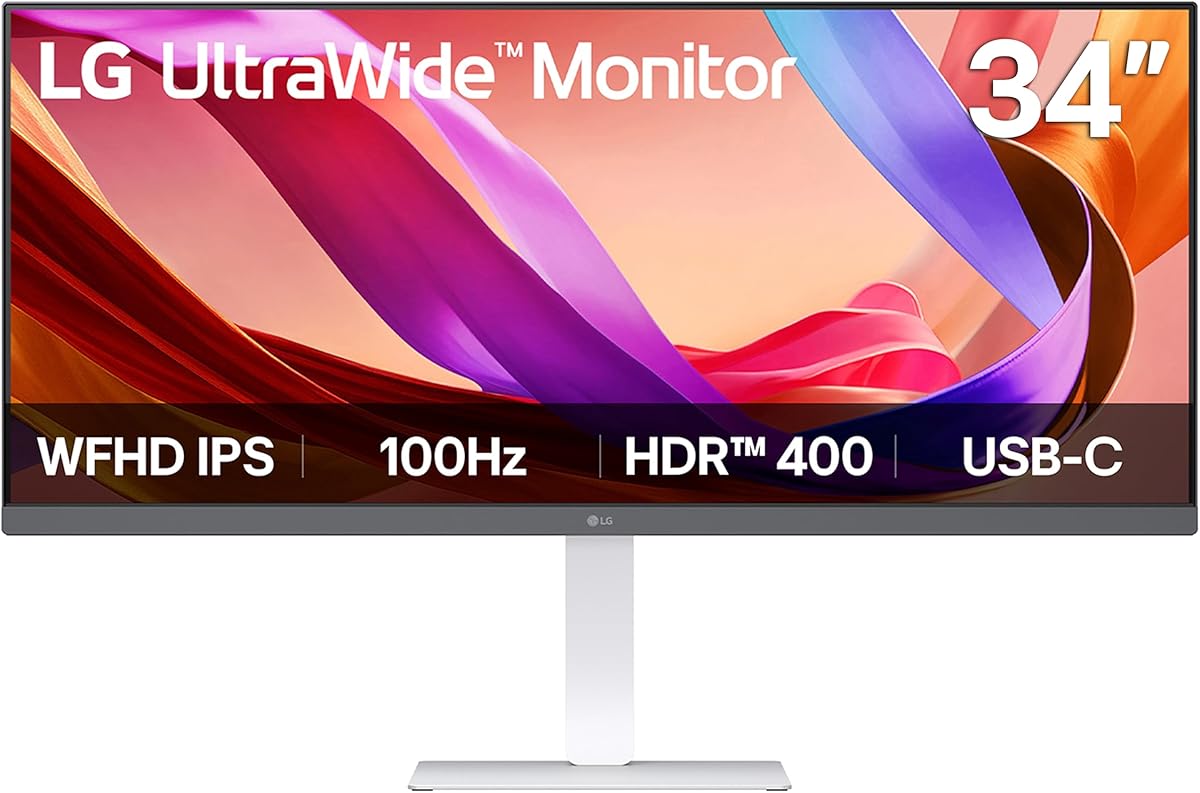
The LG 34U530A-W is a productivity-focused display with solid connectivity options. USB-C makes laptop connections easy with data and power. IPS technology ensures accurate color reproduction. HDR400 support improves media contrast for better visuals.
We may earn a commission when you buy through this link, at no additional cost to you.
The stand allows tilt and height adjustments for ergonomic comfort. Built-in speakers save extra desk clutter. It handles multiple windows well for work. The white design adds a fresh look to office desks.
Resolution is WFHD, which may lack clarity for text compared to QHD. No pivot means vertical use requires an arm. These points are minor for basic office tasks where comfort and connection matter most.
This monitor suits professionals needing a clean setup with easy connectivity. If you use a laptop and value USB-C simplicity, it is a strong daily driver.
USB-C connectivity simplifies your setup by handling display and data with a single cable, reducing desk clutter significantly.
The IPS panel maintains accurate colors across wide viewing angles, ensuring your work looks consistent from any position.
We may earn a commission when you buy through this link, at no additional cost to you.
Selecting the right monitor involves balancing resolution, refresh rate, panel type, and connectivity. This guide breaks down the key factors to consider before you buy.
Resolution determines pixel clarity, and size affects how much content you can view. Ultrawide monitors typically range from 29 to 34 inches. UWQHD (3440×1440) offers sharper text than WFHD (2560×1080). For general productivity, 34 inches is a sweet spot. WFHD may save costs but lacks clarity.
Choose UWQHD for sharp text and WFHD for pure budget savings.
Refresh rate impacts motion smoothness, vital for gaming. Aim for at least 120Hz for fluid visuals. Response time measures pixel changes; lower is better to reduce motion blur. 1ms is ideal for competitive gaming while 5ms suffices for general use.
Prioritize high refresh rates for gaming and standard rates for office tasks.
IPS panels offer wide viewing angles and accurate colors but may have lower contrast. VA panels provide deeper blacks and higher contrast, which suits dark rooms. TN panels are rare now but offer speed. For mixed use, IPS or VA are recommended.
Pick IPS for color accuracy or VA for contrast and blacks.
An ergonomic stand with height and tilt adjustments reduces neck strain. Look for VESA mount compatibility if you plan to use an arm. Bezel design affects aesthetics and multi-monitor setups. A borderless look enhances immersion.
Ensure the stand fits your posture needs for long-term comfort.
Check available ports like HDMI and DisplayPort for your devices. USB-C with power delivery simplifies laptop setups. Ensure the monitor supports the bandwidth needed for your resolution and refresh rate. Missing ports might require adapters.
Select a model with ports that match your current devices.
Features like flicker-free technology and low blue light modes protect vision. Some monitors offer sensors to adjust brightness automatically. These help reduce fatigue during long sessions. Look for certifications like TUV Rheinland for added assurance.
Prioritize eye comfort if you work or game for hours daily.
PIP and PBP modes allow you to view multiple inputs on one screen. Split-screen software helps organize windows. This reduces the need for multiple monitors. Look for OnScreen tools or dedicated software to manage layouts efficiently.
Use PIP/PBP to maximize screen real estate without extra hardware.
A longer warranty period indicates manufacturer confidence. Check support response times and availability. Some brands offer on-site repairs while others ship units back. Always keep receipts and registration info for claims.
Choose a brand with strong warranty terms for peace of mind.
Start by placing the monitor on a stable surface at eye level. Adjust the stand to a comfortable tilt. Use a soft microfiber cloth to wipe dust gently. Avoid harsh chemicals that can damage the screen coating.
Connect your devices using high-quality cables to ensure bandwidth. Set your graphics driver to match the monitor's refresh rate for best performance. Use built-in tools to split windows for multitasking. Enable night modes to reduce blue light at night.
Keep the screen clean and dry to prevent scratches. Don't press hard on the panel surface. Update firmware if available through the manufacturer's site. Proper care extends the life and performance of your display.
Yes, an ultrawide monitor offers a seamless viewing experience without bezels breaking up your workspace. It improves immersion for media and multitasking with fewer distractions. Dual monitors can be more flexible for independent tasks, but ultrawide simplifies cable management.
Absolutely. Many budget models offer high refresh rates and adaptive sync features. Look for options with 120Hz or higher and low response times. These ensure smooth gameplay without needing premium pricing.
Yes, the wide screen real estate is excellent for spreadsheets, coding, and editing timelines. You can have multiple windows open side by side easily. Tools like PIP/PBP further enhance your workflow efficiency.
For 34 inches, UWQHD (3440×1440) offers sharp text and detailed graphics. WFHD (2560×1080) is more budget-friendly but may look less crisp. Choose UWQHD if you work with text-heavy content or creative work.
Not necessarily. Many budget ultrawide monitors work with entry-level GPUs. Ensure your card supports the refresh rate you desire. If you want high frame rates, a mid-range card usually suffices.
Use features like low blue light and flicker-free modes. Adjust brightness to match room lighting. Take regular breaks using the 20-20-20 rule. Proper stand height also helps maintain good posture.
This guide highlighted ten budget-friendly models catering to gamers, professionals, and creative users. Whether you prioritize high refresh rates, ergonomic stands, or USB-C connectivity, there is a pick for every need.
When choosing, consider your primary use case first. Gamers should focus on refresh rate while office users might value eye comfort. Balancing these needs with your budget ensures you find the best fit.
Remember to check current prices and availability before purchasing. Prices change frequently and deals come and go. Stay updated to grab the best value for your specific requirements today.